Schematic Editor User Settings
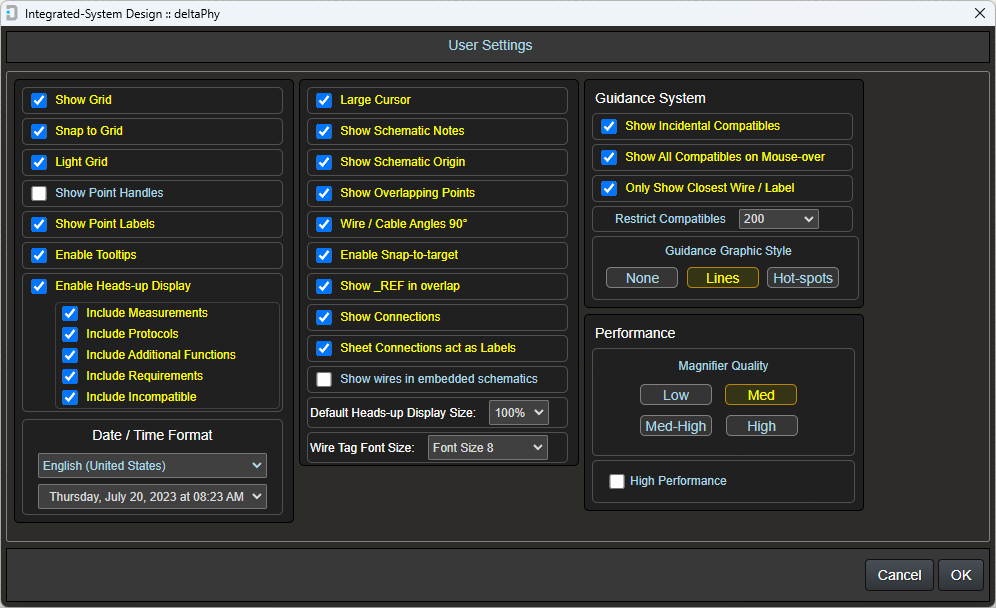
Show Grid
Shows / hides the schematic grid Also toggled by the  toolbar button.
toolbar button.
Snap to Grid
Enable / disable snap-to-grid Also toggled by the  toolbar button.
toolbar button.
Light Grid
Enable lighter colored grid when checked
Show Point Handles
Shows / hides object point handles Also toggled by the  toolbar button.
toolbar button.
Show Point Labels
Shows / hides object point labels on mouse-over
Enable Tooltips
Enables / disables tooltips (except in user settings)
Enable Heads-up Display
Enables / disables heads-up display for components and electrical objects
Include Measurements
Include measurements in the heads-up display
Include Protocols
Include protocols in the heads-up display
Include Additional Functions
Include additional functions in the heads-up display
Include Requirements
Include requirements in the heads-up display
Include Incompatible
Include incompatibles in the heads-up display
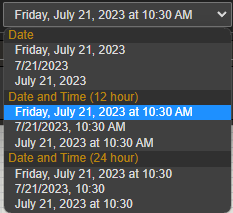
Date / Time Format
First Select
Select from a comprensive range of international locals.
Second Select
Select from a range of date formats.
Large Cursor
Enable large cross-hairs style cursor
Show Schematic Notes
Automatically open notes for schematics when opened
Show Schematic Origin
Show / hide origin object
Show Overlapping Points
Show / hide overlapping points Also toggled by the  toolbar button.
toolbar button.
Wire / Cable Angles 90°
Force wires & cables to be 45° / 90° Also toggled by the  toolbar button.
toolbar button.
Enable Snap-to-target
Snap wires to the nearest electrical object in range Also toggled by the  toolbar button.
toolbar button.
Show _REF in overlap
Show / hide reference object points in overlapping points for readability if there are too many
Show Connections
Show / hide flashing blue circles that indicate connected points
Sheet Connections act as Labels
Allow sheet connections to connect to labels Also toggled by the  toolbar button.
toolbar button.
Show wires in embedded schematics
Allow wires in sub-sheets to be listed in overlapping points list
Default Heads-up Display Size
Adjust the size of the heads-up and overlapping points list to suit your display
Wire Tag Font Size
Adjust the size of the wire tags to suit your schematic
Guidance System
Show Incidental Compatibles
Allow, for example, power output objects to indicate compatibility with voltage inputs (shown as dashed lines)
Show All Compatibles on Mouse-over
Show compatible indicators for all overlapping points rather than just the top object in the overlapping points list.
Once another overlapping point is selected using SPACE, ↑ or ↓, only compatibles for that selected point will be drawn.
Only Show Closest Wire / Label
For clarity only show compatible indicators to the closest connected wire or label
Restrict Compatibles
For clarity restrict the number of compatible indicators if there are many compatible objects
Guidance Graphics Style
None, Lines, Hot-spots Also toggled by the  toolbar button.
toolbar button.
Performance
Magnifier Quality
Low, Med, Med-High, High
Low
Graphics quality low except when an object is directly under the mouse.
Med
Graphics quality high but objects may appear or disappear if they are far enough away from the mouse cursor.
Med-High
Graphics quality high but objects may appear or disappear if they are far enough away from the mouse cursor.
High
All objects rendered in high quality mode.
High Performance Mode
Enables faster graphic rendering at a slightly lower quality Also toggled by the  toolbar button.
toolbar button.
Component Library Editor User Settings
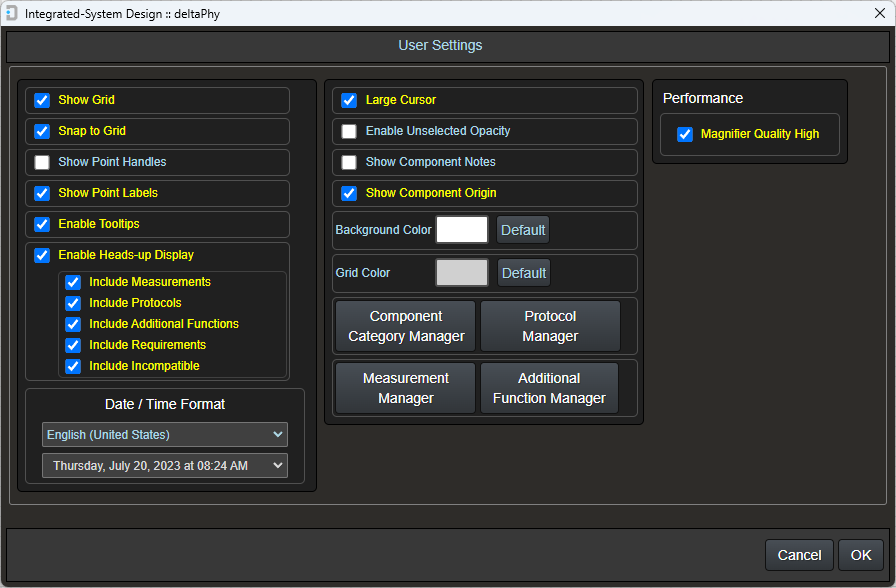
Show Grid
Shows / hides the schematic grid Also toggled by the toolbar button.
toolbar button.
Snap to Grid
Enable / disable snap-to-grid Also toggled by the toolbar button.
toolbar button.
Show Point Handles
Shows / hides object point handles Also toggled by the toolbar button.
toolbar button.
Show Point Labels
Shows / hides object point labels on mouse-over
Enable Tooltips
Enables / disables tooltips (except in user settings)
Enable Heads-up Display
Enables / disables heads-up display for components and electrical objects
Include Measurements
Include measurements in the heads-up display
Include Protocols
Include protocols in the heads-up display
Include Additional Functions
Include additional functions in the heads-up display
Include Requirements
Include requirements in the heads-up display
Include Incompatible
Include incompatibles in the heads-up display
Date / Time Format
First Select
Select from a comprensive range of international locals.
Second Select
Select from a range of date formats.
Large Cursor
Enable large cross-hairs style cursor
Enable Unselected Opacity
Makes objects that are not hovered on less visible to help see what object you are hovering on
Show Component Notes
Automatically open notes when opening components
Show Component Origin
Show / hide origin object
Background Color / Grid Color
Background Color
Use the Color Picker to select a background color. The Default button will restore the default value.
Grid Color
Use the Color Picker to select a grid color. The Default button will restore the default value.
Component Category Manager
Opens the Component Category Manager dialog where you can create and delete component categories.
Protocol Manager
Opens the Protocol Manager dialog where you can create, edit and delete communication protocols.
Measurement Manager
Opens the Measurement Manager dialog where you can create, edit and delete measurements.
Additional Function Manager
Opens the Additional Function Manager dialog where you can create, edit and delete additional functions.
Magnifier Quality
Sets the magnifier quality to Low or High
Layout Editor User Settings
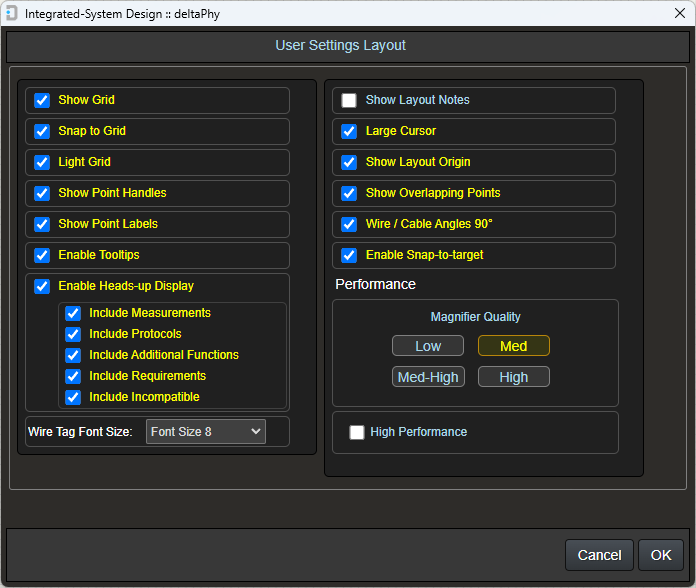
Show Grid
Shows / hides the schematic grid Also toggled by the toolbar button.
toolbar button.
Snap to Grid
Enable / disable snap-to-grid Also toggled by the toolbar button.
toolbar button.
Light Grid
Enable lighter colored grid when checked
Show Point Handles
Shows / hides object point handles Also toggled by the toolbar button.
toolbar button.
Show Point Labels
Shows / hides object point labels on mouse-over
Enable Tooltips
Enables / disables tooltips (except in user settings)
Enable Heads-up Display
Enables / disables heads-up display for components and electrical objects
Include Measurements
Include measurements in the heads-up display
Include Protocols
Include protocols in the heads-up display
Include Additional Functions
Include additional functions in the heads-up display
Include Requirements
Include requirements in the heads-up display
Include Incompatible
Include incompatibles in the heads-up display
Wire Tag Font Size
Adjust the size of the wire tags to suit your schematic
Show Layout Notes
Automatically open notes for layouts when opened
Large Cursor
Enable large cross-hairs style cursor
Show Layout Origin
Show / hide origin object
Show Overlapping Points
Show / hide overlapping points Also toggled by the toolbar button.
toolbar button.
Wire / Cable Angles 90°
Force wires & cables to be 45° / 90° Also toggled by the toolbar button.
toolbar button.
Enable Snap-to-target
Snap wires to the nearest electrical object in range Also toggled by the toolbar button.
toolbar button.
Performance
Magnifier Quality
Low, Med, Med-High, High
Low
Graphics quality low except when an object is directly under the mouse.
Med
Graphics quality high but objects may appear or disappear if they are far enough away from the mouse cursor.
Med-High
Graphics quality high but objects may appear or disappear if they are far enough away from the mouse cursor.
High
All objects rendered in high quality mode.
High Performance Mode
Enables faster graphic rendering at a slightly lower quality Also toggled by the toolbar button.
toolbar button.